
The iPhone/iPad default signature line is “Sent from my iPhone,” but you can change this text to anything you wish.
You can also make an email signature that differs for each of your email accounts.
- Open Settings and scroll down to Apps
- Scroll to find and select Mail
- Scroll down and select Signature
- Type the desired email signature in the space provided, or remove all of the text to delete the email signature
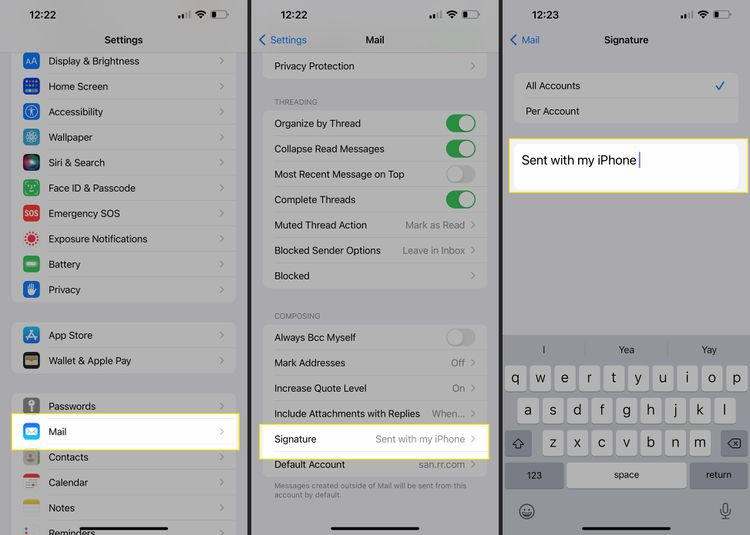
(If you have more than one email address set up in Mail and use the same email signature for all addresses, tap All Accounts or choose Per Account to specify a different email signature for each account.)
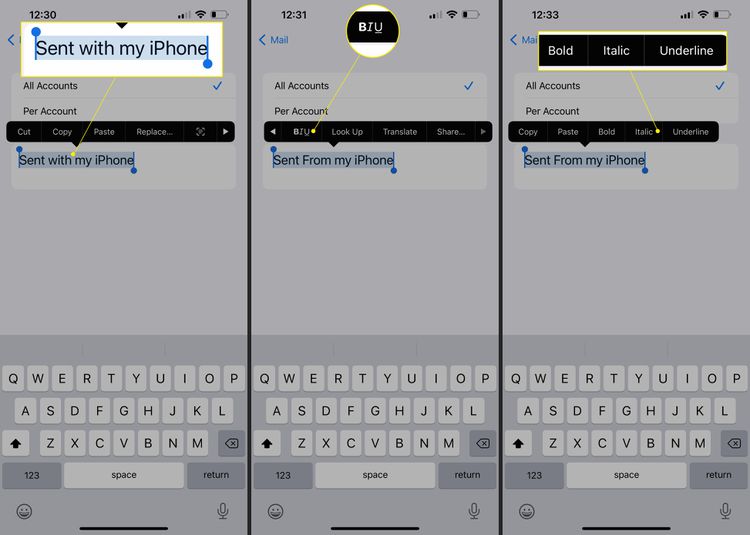
- To apply some basic formatting double-tap the signature text and use the handles to select the portion of the signature that you want to format
- In the menu that appears above the selected text tap the Format title
- Tap either Bold, Italic, or Underline to apply to your text
(If you don’t see the Format menu, tap the right or left pointing arrows on the menu bar)
- Tap the back arrow in the upper-left corner of the Signature screen to save the changes and return to the Mail screen
Original Source
https://www.lifewire.com/set-up-your-ios-mail-signature-on-iphone-and-ipad-1172559