You can send customers notes/updates regarding their order within the E-commerce system on an Order details page.
This allows you to automatically send updates via email as well as tracking anything you have sent the customer within the order details.
Send Tracking details
One good use of the note function is sending customers Tracking details when you ship their order.
You can add some simple text and the tracking number along with a link to the delivery company track page, the customer will then receive those details without you having to spend time finding their email and order number etc.
You can also create ‘private’ notes which show in the order details page but are not sent to the customer.
Creating a Note #
Open the order details page for the order you wish to add a note.
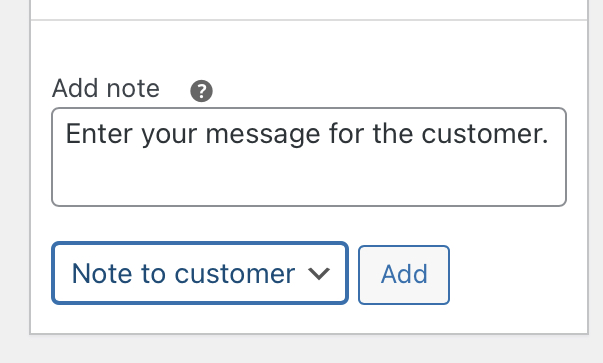
On the right hand side of the page under the “Order notes” heading you will see a box titled “Add note” and a dropdown.
Customer note #
For a message to be sent to the customer change the dropdown to “Note to customer” and enter the text you wish to use in the text box.
Then select the ‘Add’ button which will add the note to the page and send an email to the customer with the text you
added.
Private note #
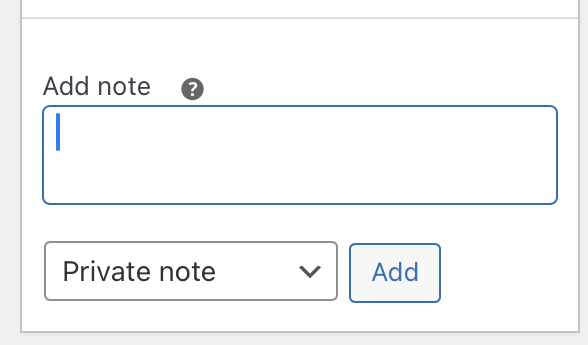
If you wish to add a note just for the order details and not to be sent to the customer you just need to set the dropdown to “Private note” and then type your note and select the ‘Add’ button.
Notes List #
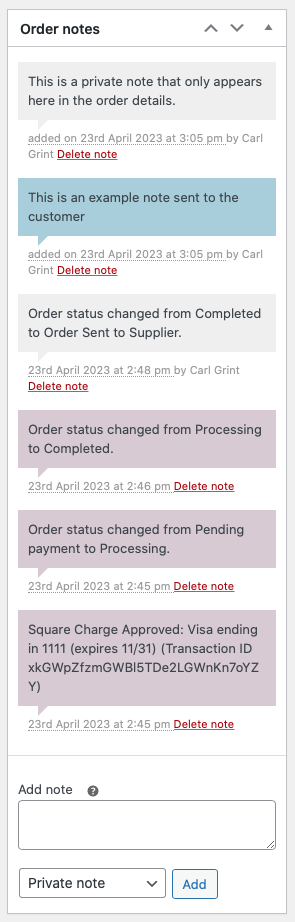
The messages you enter are shown in the “Order notes” section along with the Order status and Payment status Updates for the order.
Customer Note Email #
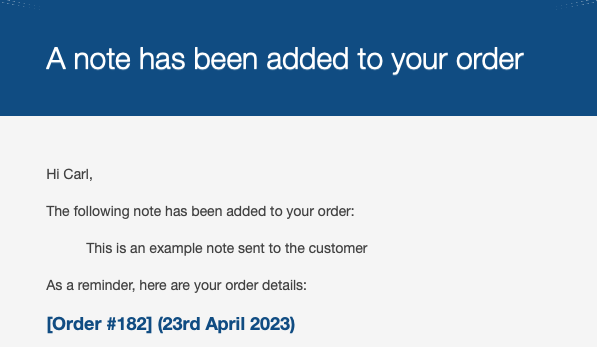
The customer receives an email with the text you entered after you add a ‘Customer note’.
Below is an example of the email a customer will receive.