
You refund an online customer via the website admin Orders details page within the Woocommerce Orders section
- From the left-hand side bar select the Orders list page Woocommerce > Orders
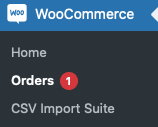
- Then select the Order you wish to Refund
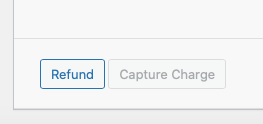
- When the Order details page loads select the “Refund” button at the bottom left of the order details area
This will change the order details to show text boxes next to each item ordered and the shipping
- You can enter a number in the Quantity box for each product you wish to refund and it will auto complete the amounts for each product and the refund total or you can enter the amounts manually if you are giving a part refund
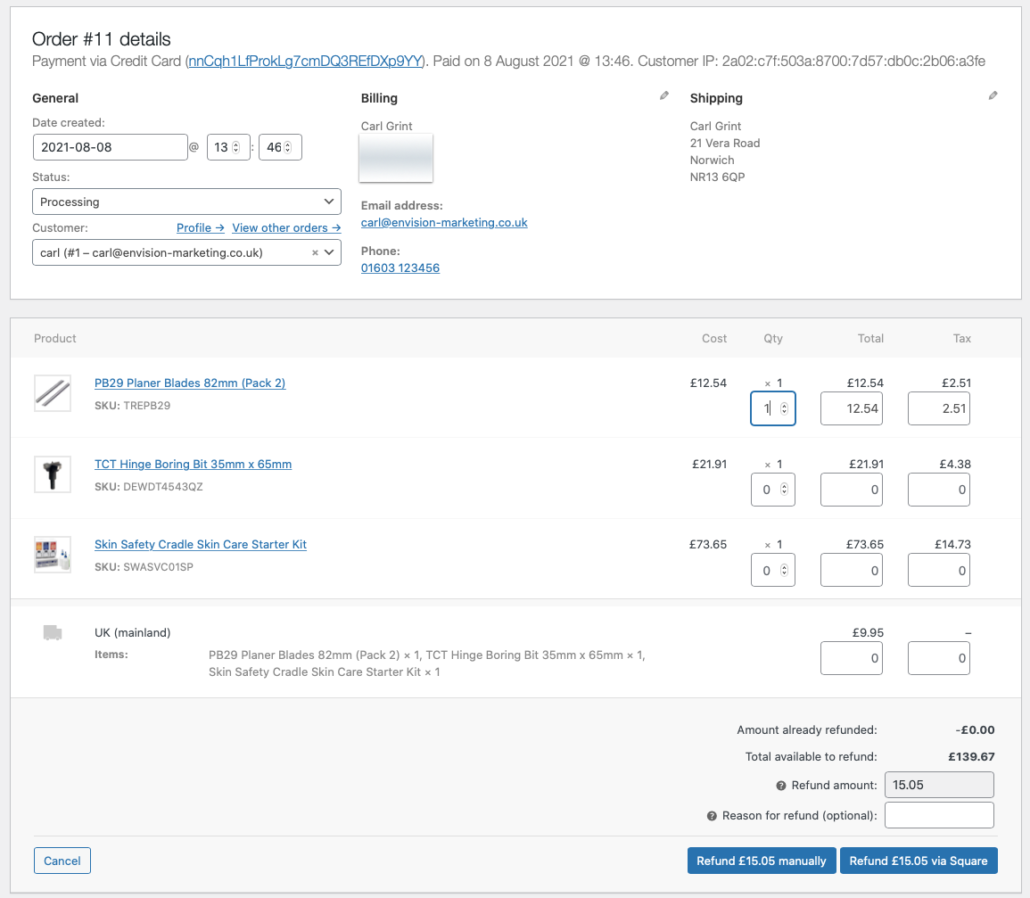
- If Shipping has been charged you will need to enter the £ amount in the box next to it to add that to the running refund total
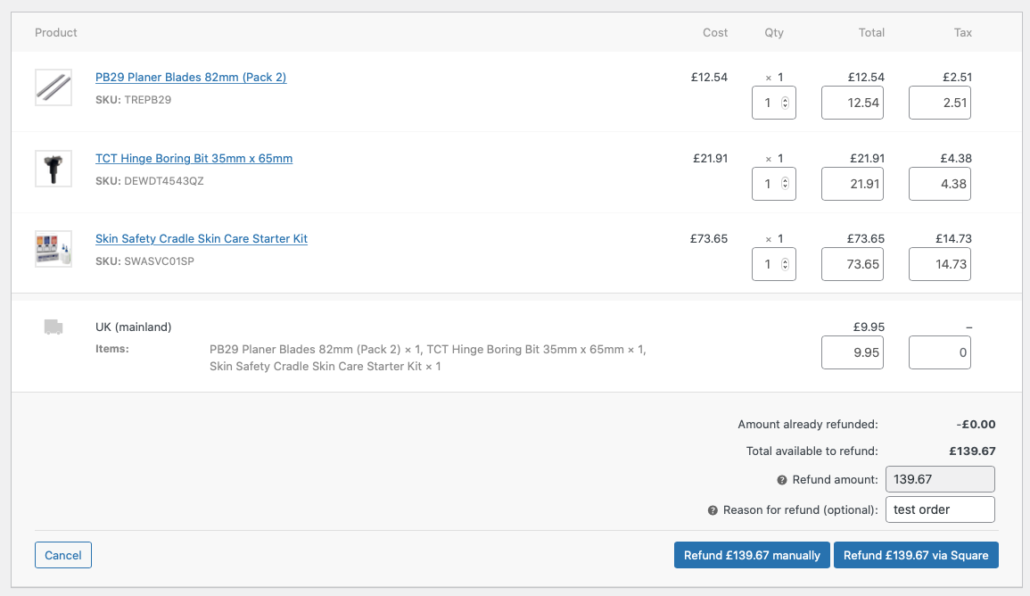
Automated Refund #
- Once you are happy the full amount has been totalled up correctly select the “Refund £X via Square” button
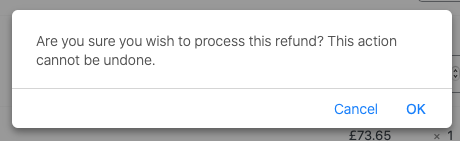
- It will ask if you are sure, selecting “ok” will action the refund to the customers payment card and the customer will receive an email telling them their order has been refunded
All products bought will be ‘returned’ to the system and if stock control is in use add back the quantity for each product returned in the order to its stock numbers
Manual Refund #
You also have the option for a ‘manual’ refund which will only action changing the website order status to “Refunded” and doesn’t actually refund the money to the customer, you would then need to refund the money to the customers payment card separately

Note #
If you are syncing your website shop with your in-house EPOS you will also need to run a refund within your in-house EPOS system to update your records after processing a refund to the customer payment card in your website admin as the EPOS system link does not process Refund details