
To give Club Members their discount on the website you need to create a coupon using their Membership number as the coupon code.
Notes
These are the settings I have created as default for the Club Members discount but you can add to them if you wish as long as you ensure the following settings are at least in place.
Creating Coupon #
Go to the left hand menu Marketing → Coupons and then select the Add coupon button.
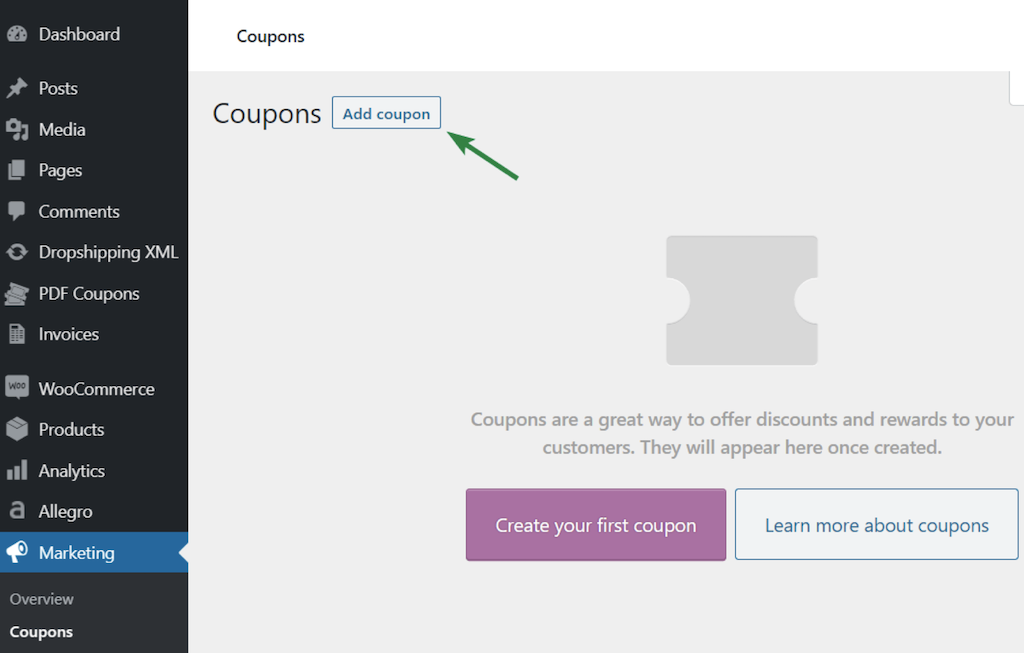
To setup your coupon for a Club Members fill in the following:
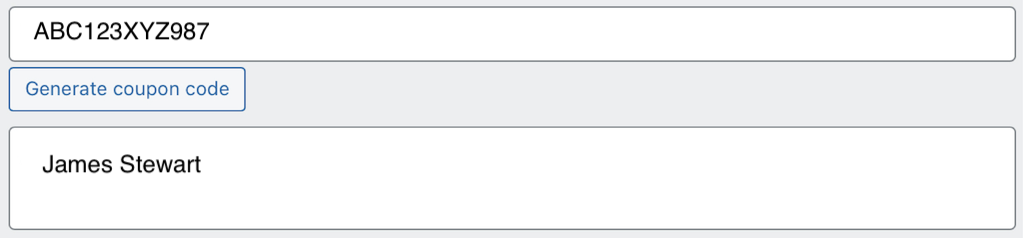
Coupon code
This is the Membership number assigned when creating the member in your in-house Club Members system
Description
This is optional but using it for the members Name will give you a second identifier for them.
General Settings #
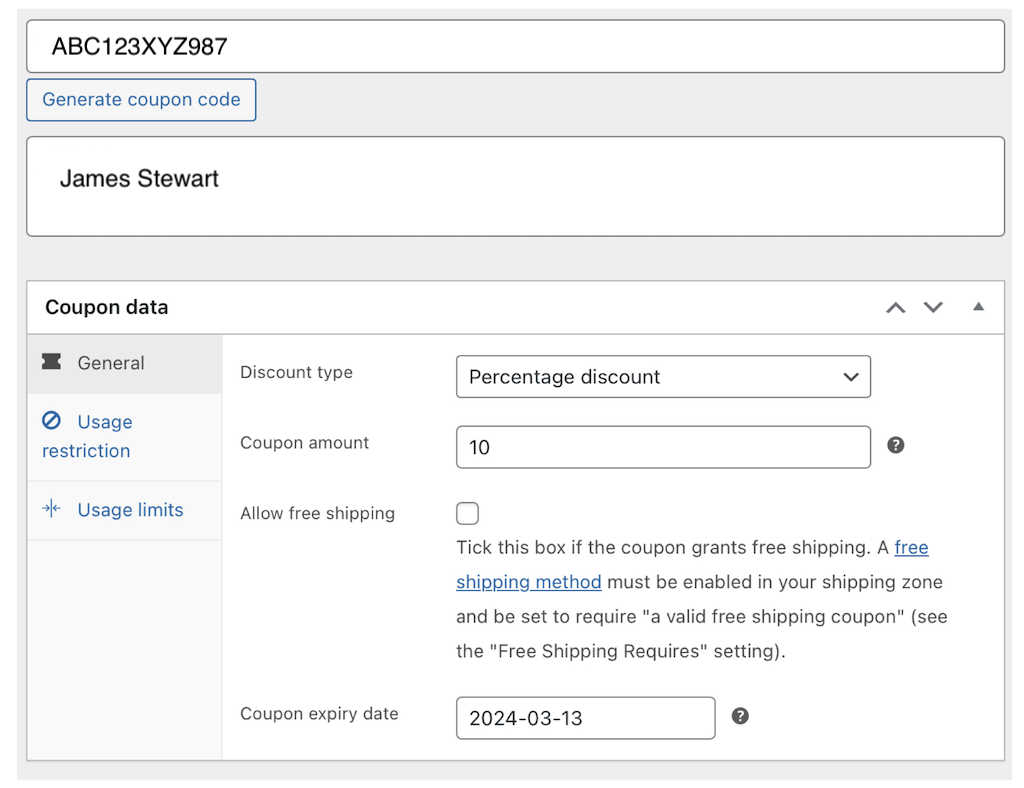
Discount type
This needs setting to “Percentage discount”
Coupon amount
Enter the discount value, currently 10%, just the number
Coupon expiry date
Set this to the end date of the Club Membership.
When members renew their membership you can update this to the new date so ensuring only those with active memberships can use the discount.
Usage Restriction #
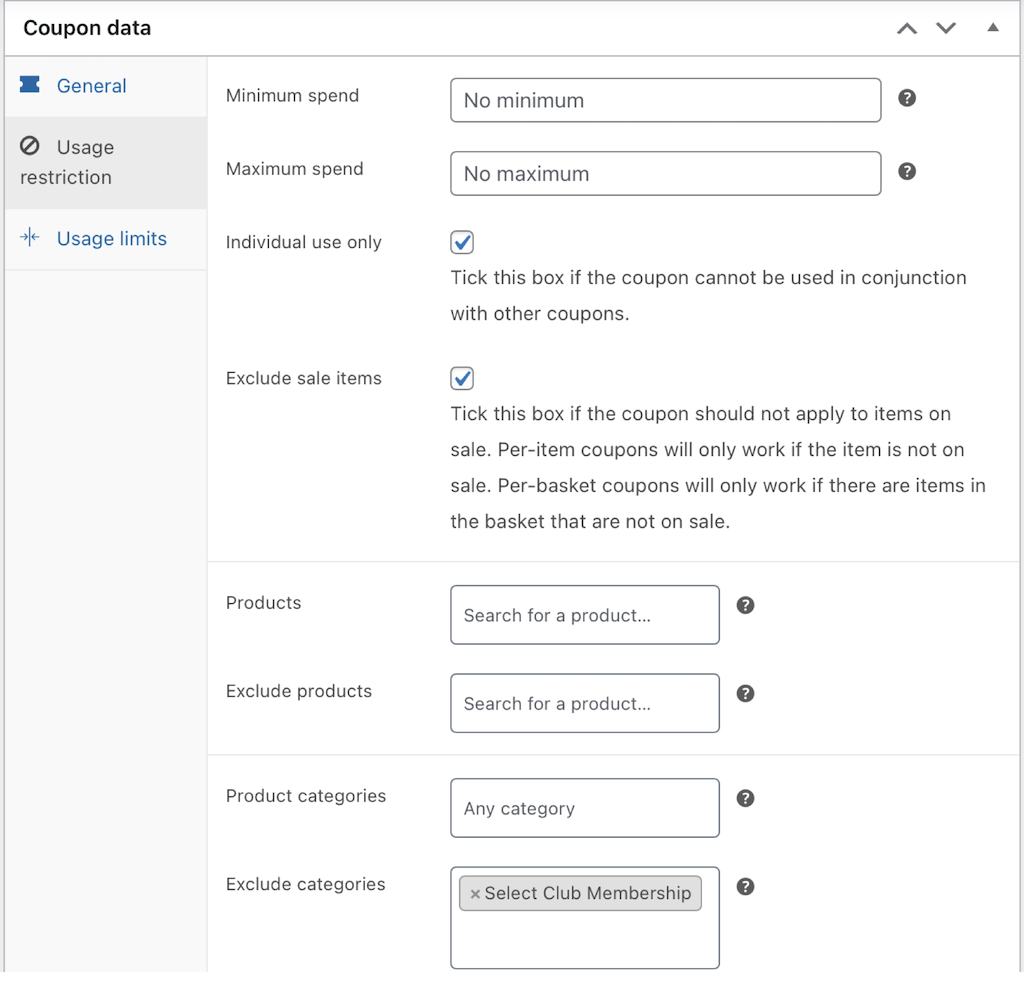
Here you can set the exclusion of products categories so members can’t discount the Club Membership renewal product as well as setting it to exclude Sales and only to be used by itself so coupons/discounts cannot be stacked.
Set the following:
Individual use only
Check this option so this discount cannot be used in combination with other coupons.
Exclude sale items
Check this option so the coupon can’t be applied to products on sale.
Exclude categories
Set the category/s for which the discount won’t be applied.
Start typing “Club Membership” and when the title appears select it to set that category as excluded so customers can’t discount when renewing their membership.
Notes
These are the settings I have created as default for the Club Members discount but you can add to them if you wish as long as you ensure the above settings are at least in place.